
Apps · Finance
Invoicing
Bill customers in seconds, take payment online, and let Quelixa chase what's overdue so you don't have to.
The Invoicing app turns work into cash. Raise a professional invoice, send it, get paid through the customer portal, and let automated follow-ups handle the chasing. Every invoice posts straight to the ledger.
Raise an invoice#
- Create the invoice
Go to Invoicing → Customers → Invoices → New. Pick the customer; their currency, payment terms and tax position fill in automatically.
- Add lines
Add products or free-text lines. Quelixa applies the right tax and computes totals as you type.
- Confirm
Confirming validates the invoice, assigns its legal sequence number, and posts the journal entry. It's now a real receivable.
- Send
Email it as a branded PDF, or share a portal link where the customer can view and pay.
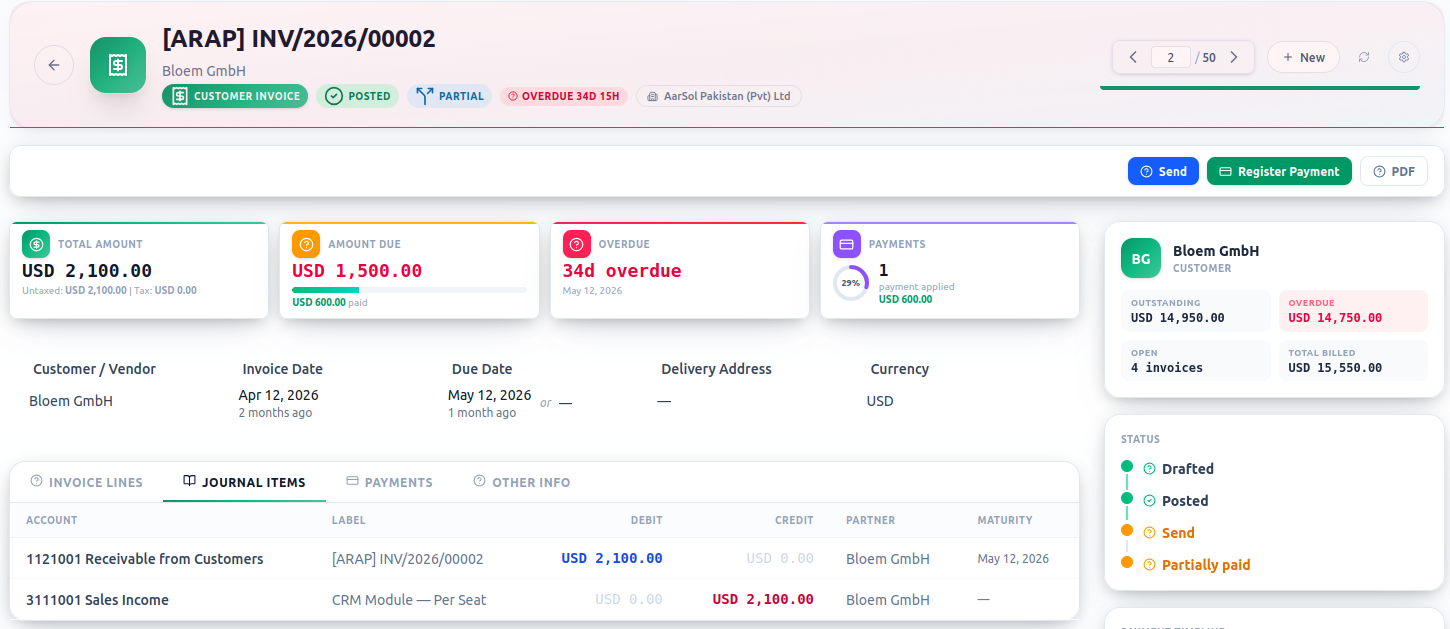
If the invoice comes from a confirmed sales order, you don't start here at all — you invoice directly from the order, and the lines carry over. See the Sales guides for the order-to-cash flow.
Get paid#
The customer portal lets clients view their invoices and pay online by card or bank transfer. Payment reconciles against the invoice automatically, so the receivable clears without a manual step.
| Method | How it settles | | --- | --- | | Online (card / transfer) | Customer pays via the portal; payment matches the invoice automatically. | | Manual | Record a payment against the invoice; reconcile when the bank line arrives. | | Batch | Reconcile many invoices against a single deposit. |
Automate the chasing#
Overdue invoices are a tax on your time. Quelixa's follow-up levels send escalating reminders on a schedule you control.
- Define follow-up levels
Under Invoicing → Configuration → Follow-up Levels, set the cadence — a gentle nudge at 7 days, a firmer note at 21, a call task at 45.
- Let it run
Quelixa queues the right action for each overdue customer. Review the daily follow-up list and send with one click — or let it send automatically.
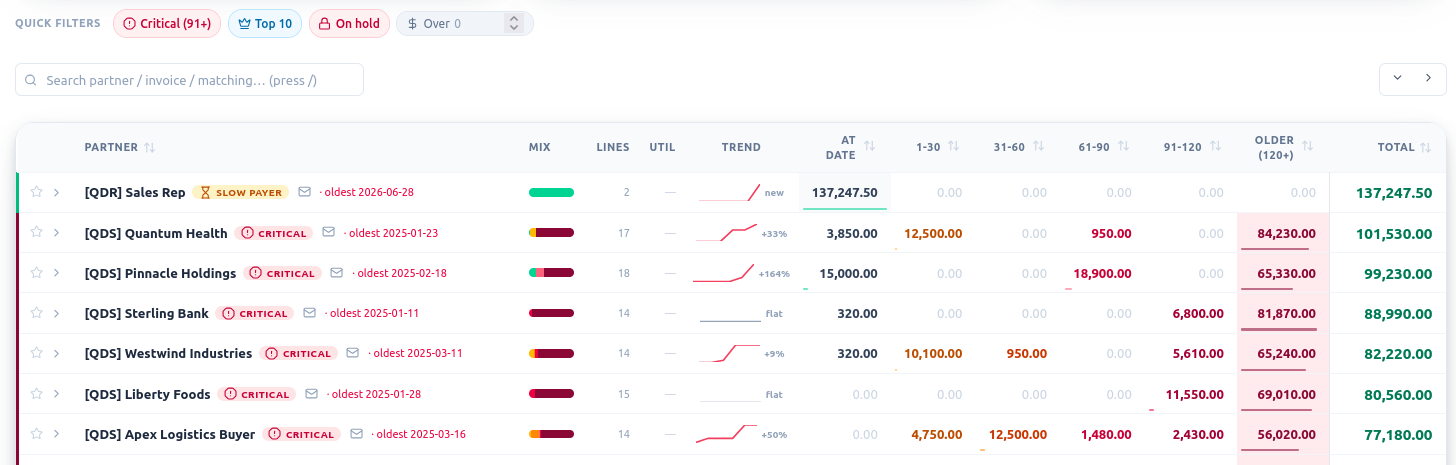
Nova · Aurora Ask the concierge to draft a payment reminder in the right tone for a specific customer and situation. It writes it from the invoice context; you approve and send.
Recurring & subscriptions#
For retainers and subscriptions, set an invoice to recurring — Quelixa generates and (optionally) sends each period's invoice on schedule, so revenue runs itself.
Test a recurring invoice by generating the first one manually and reviewing it. Once you're happy, switch on auto-send — there's no un-sending an emailed invoice.